After my first dive into the BetterTouchTool app here's my follow up post. As the BetterTouch Tool app is really a swiss army knife for a lot of different use cases and problems, I thought I'll give you some more ideas to get even more value out of this app. Here are some examples.
/ Menu Items
With the BetterTouchTool app you can also add customized context menu items, for example within the Finder app. I myself followed along this official tutorial to get my first context menu item done. In this case I will add a "New File" entry to my context menu in Finder, so whenever I press my right mouse button there I have access to this menu item. So let's begin!
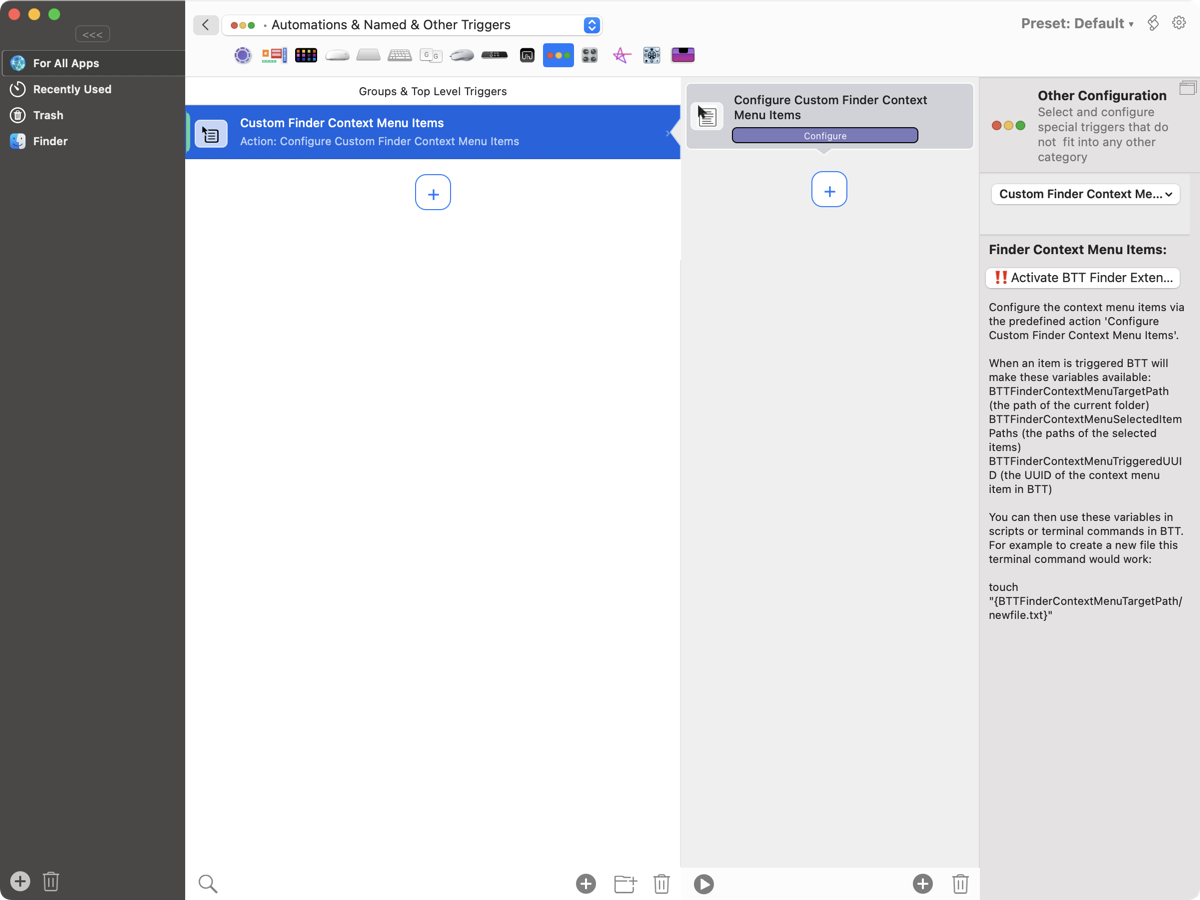
Again in BetterTouchTool start with "For All Apps" in the left sidebar. Now within the section "Automations & Named & Other Triggers" find the "Custom Finder Context Menu Items" trigger and select it. Now hit the button "Configure".
Within the "Action Configuration" window you can name your new menu item in the right sidebar, mine is simply called "New File". If you want, you can even add a customized symbol here.
Now in middle pane add the following steps:
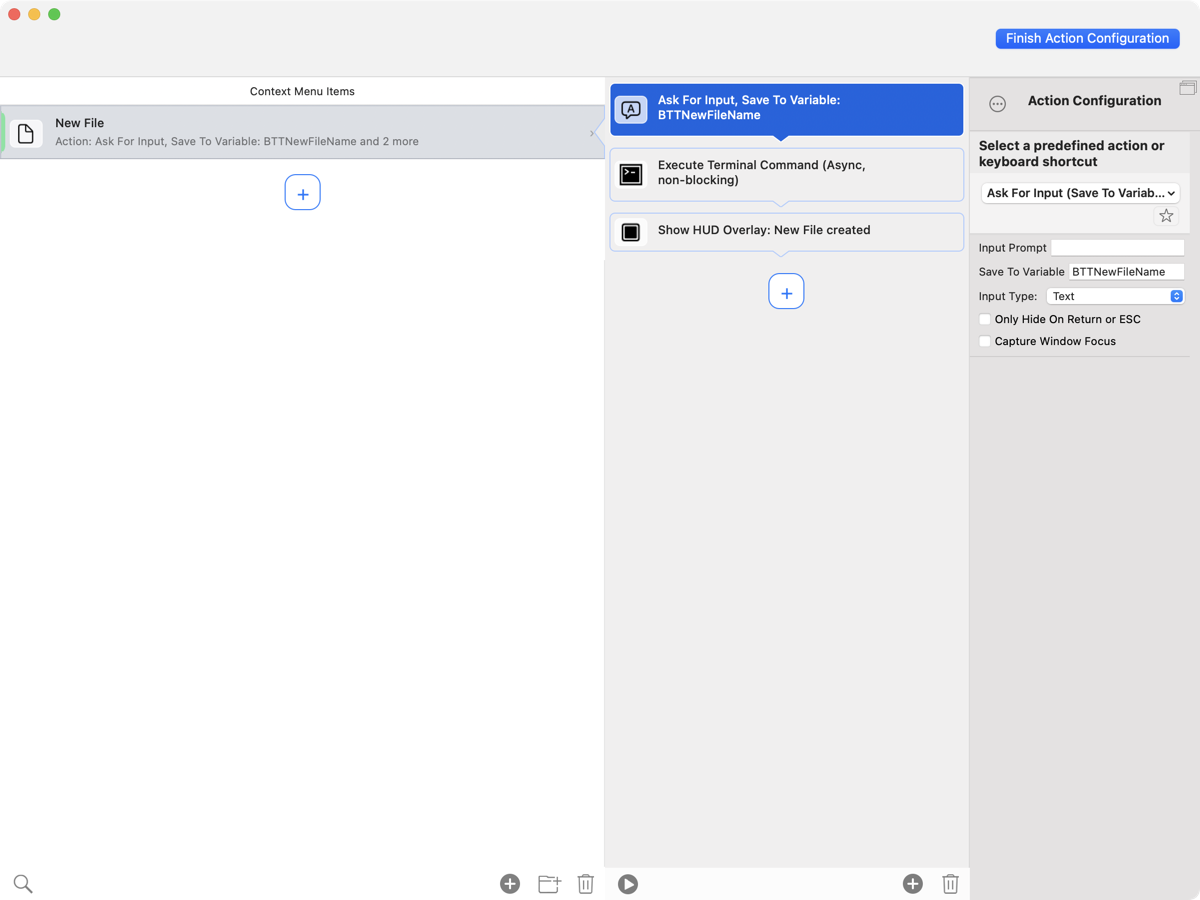
Step 1. Start with "Ask For Input (Save To Variable)" option. In the very right sidebar enter a custom name for the newly created variable. In my case I call it "BTTNewFileName".
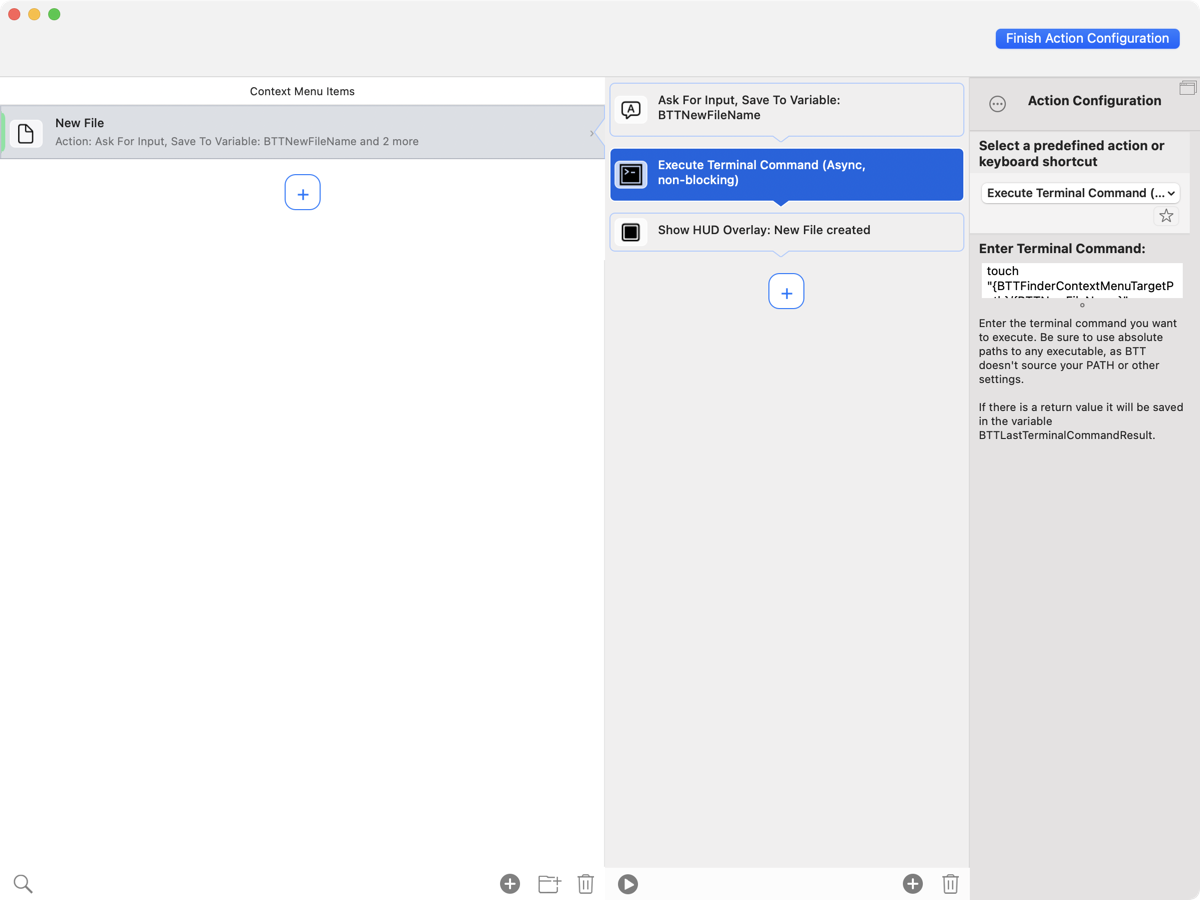
Step 2. Now add the "Execute Terminal Comman (Async, non-blocking)" field. In the right sidebar enter this short shell script using the variable created in step 1:
touch "{BTTFinderContextMenuTargetPath}/{BTTNewFileName}"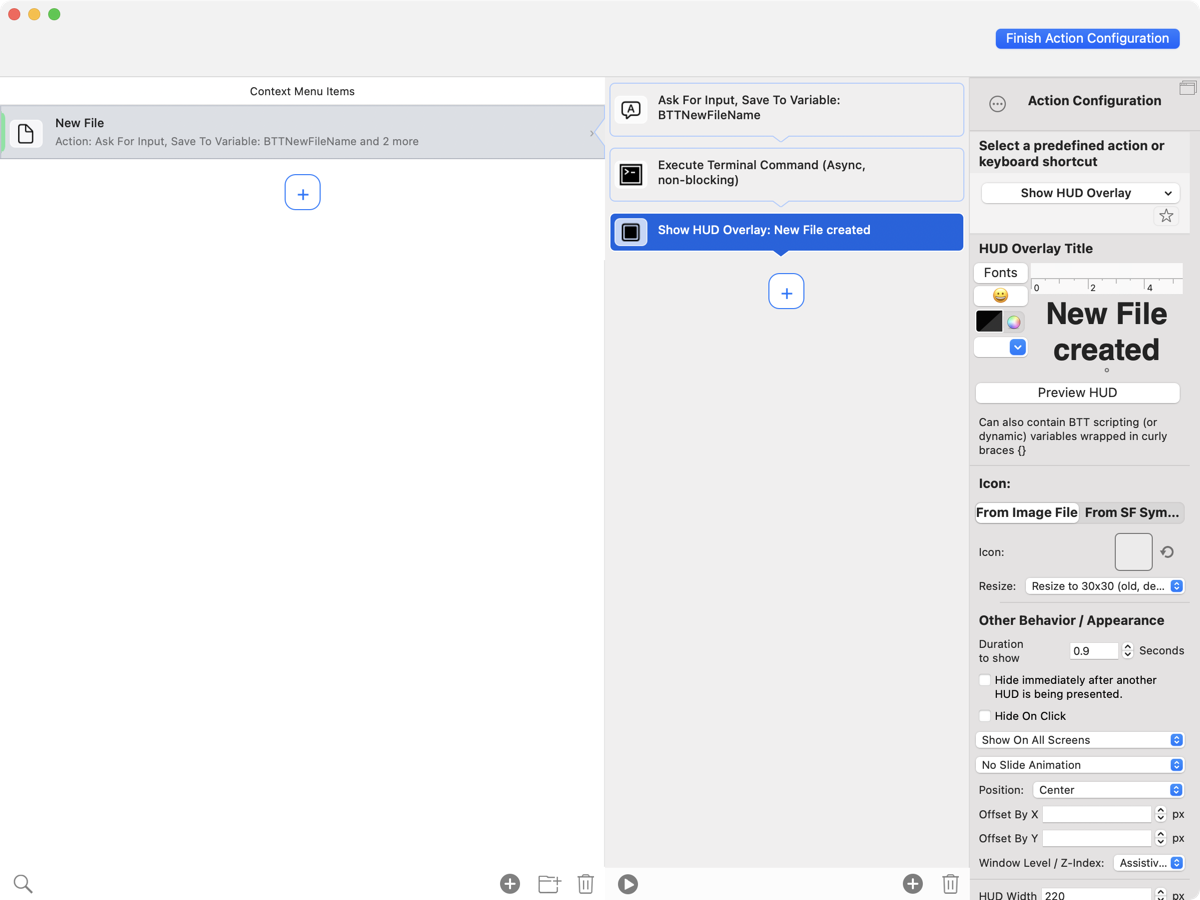
Step 3. This step is optional but I wanted to mention it here to show you more of the possibilities of the BetterTouchTool app. Add the "Show HUD overlay" option which pretty much does what the name suggests, it creates a short confirmation screen to confirm that the process has been finished successfully. In the right sidebar you can now customize the HUD to your liking.
Finish, save and exit the "Action Configuration" window. Now it's time to test the new menu item. In Finder hit the right mouse button and you should see your new item "New File" at the very bottom of the list.
So this was a bit trickier. But I want to show you two more rather easy automations that both make use of the trackpad.
/ Show Hidden Files in Finder
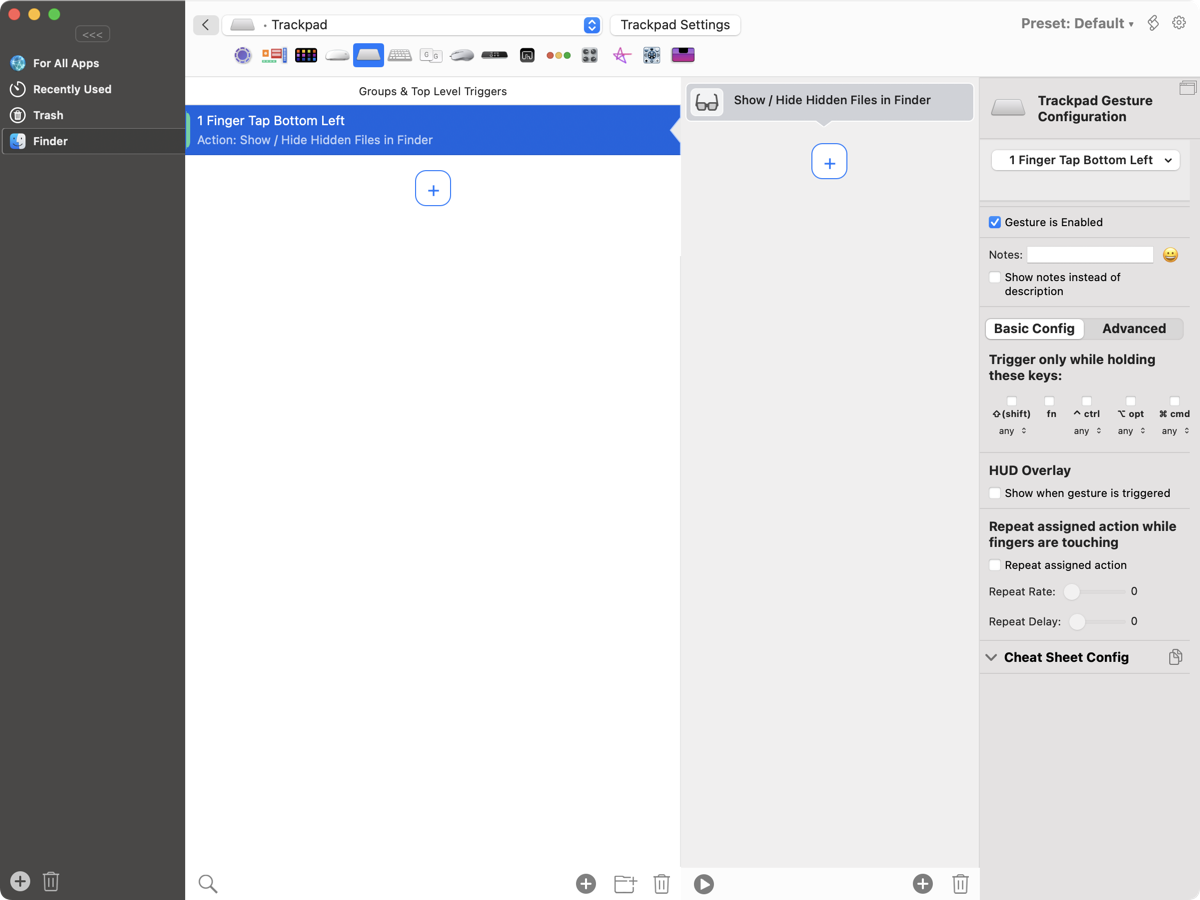
Back in the main window of the BetterTouchTool app select "Finder" in the left sidebar. Also pick "Trackpad" shortcuts only at the very top. Within the second pane hit the plus sign and choose "1 Finger Tab Bottom Left" (or whatever you prefer). Now assign a new action in the third pane. Hit the plus sign there and choose "Show / Hide Hidden Files in Finder".
And you're done! Now within Finder you can tab gently in the bottom left corner of your trackpad and the Finder app will show you all hidden files. Tab again and all hidden files will disappear again. By the way the usual keyboard shortcut on any Mac for that same command is SHIFT + COMMAND + .(dot) which of course you can immediately forget now that you have this new automation.
/ Middle Mouse Button
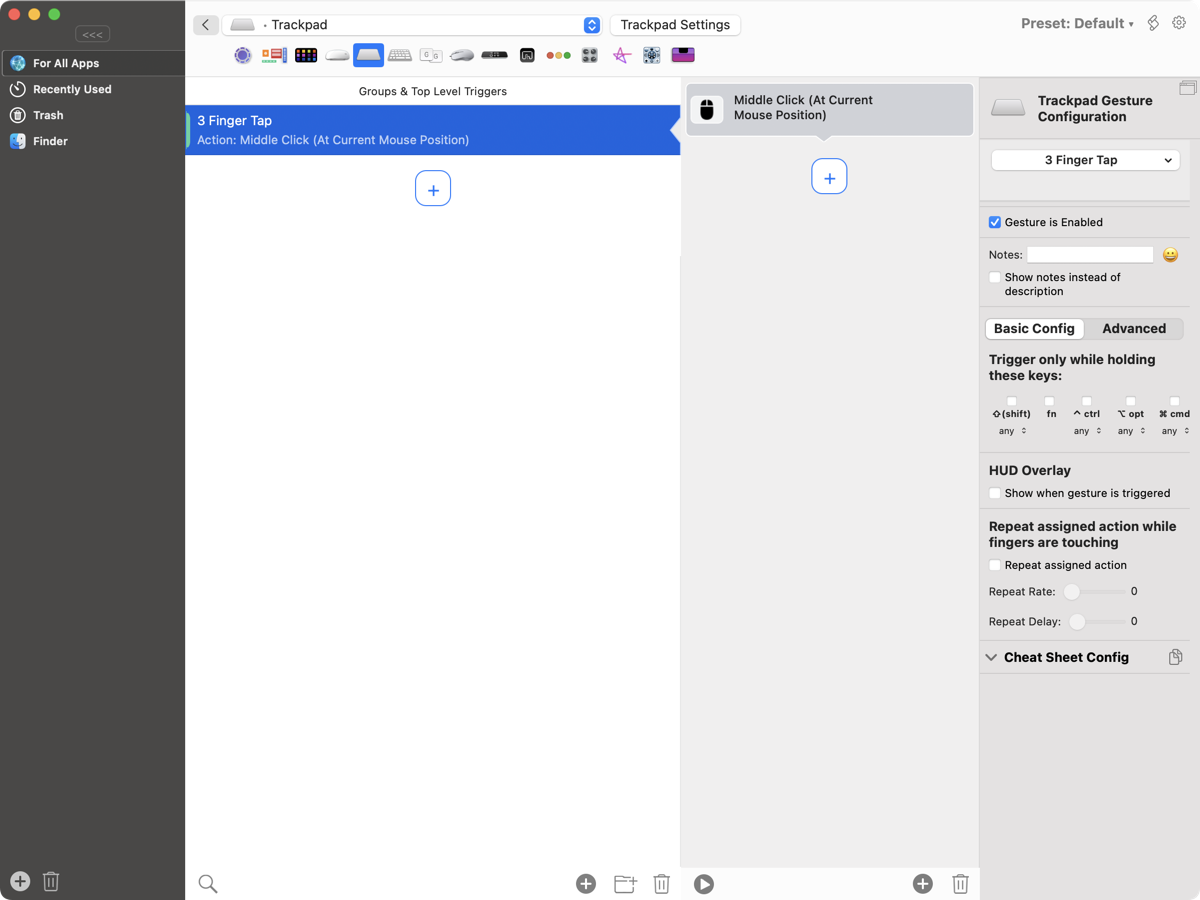
In a similar fashion we'll create our third automation today. We'll simulate a middle mouse button click with the help of the trackpad and the BetterTouchTool app.
Starting from the main window of the BetterTouchTool app select "For All Apps" in the left sidebar again. Pick "Trackpad" shortcuts only at the very top. In the second pane hit the plus sign and choose "3 Finger Tab" (or any other gesture you prefer). In the third pane hit the plus sign there and pick "Middle Click (At Current Mouse Position)".
You can try it out immediately. Tap with three fingers on your trackpad and a middle mouse button click should be registred.
These are my three tips for today. I hope you've enjoyed them and slowly find your way into making the BetterTouchTool app a productivity tool of your own.